Clear Photometry ResultsMeasure
- Measure
- Clear Results
- Photometry
- Clear Photometry Results
- Photometry Settings
- Set Scale...
- Histogram
- Plot Profile
- Surface Plot...
- Radio Spectrum...
- Optical Spectrum...
- Tools
- Calibrate...
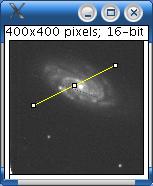
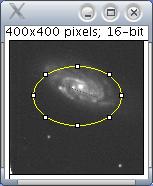
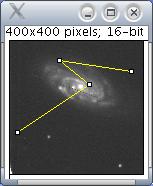
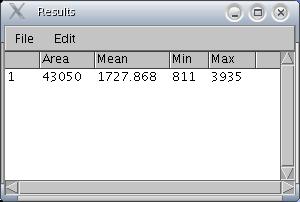
Based on the selection type, calculates and displays either area statistics, line lengths and angles. Area statistics are calculated if there is no selection or if a subregion of the image has been selected using one of the four toolsin the tool bar. Calculates line length and angle if a line selection has been created using one of the three line selection tools
.
Examples :
The width of the columns in the "Results" window can be adjusted by clicking on and dragging the vertical lines that separate the column headings.
Clear Results
Erases the results table and resets the measurement counter.
Photometry
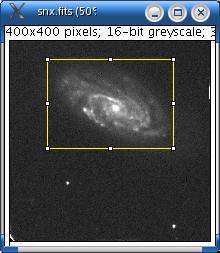
Photometry is the determination of the flux of light emitted by a star. It is calculated by correcting the integrated values of the pixels by the value of the sky background. This value can be related to the star intensity selection as shown. Click once to select a subregion of the image where the photometry will be applied.
Example :
Set Scale...
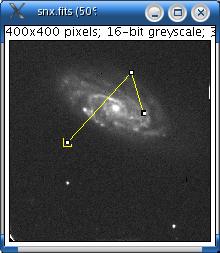
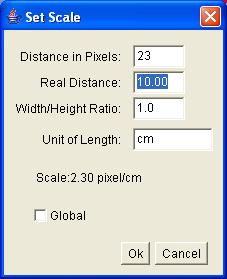
Use this dialog to define the spatial scale of the active image so measurement results can be presented in calibrated units, such as millimeters. Before using this command, use the straight line selection tool to make a line selection that corresponds to known distance. Then, bring up the Set Scale dialog, enter the known distance and unit of measurement, then click OK. SalsaJ will have automatically filled in the Distance in Pixels field based on the length of the line selection.
Set Distance in Pixels to zero to revert to pixel measurements.
Two examples of how to use the Set Scale command are available: and .
Top
Histogram
Calculates and displays a histogram of the distribution of gray values in the active image or selection. The x-axis represents the possible gray values and the y-axis shows the number of pixels found for each gray value. The total pixel count is also calculated and displayed, as well as the mean, modal, minimum and maximum gray value.
Plot Profile
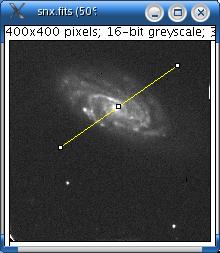
Displays a two-dimensional graph of the intensities of pixels along a line within the image. The x-axis represents distance along the line and the y-axis is the pixel intensity.
Surface Plot
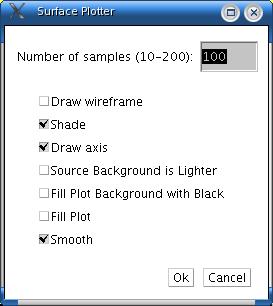
Displays a three-dimensional graph of the intensities of pixels in a grayscale or pseudo colour image. Creates a stack of plots when the source is a stack. Some plots can be improved by adjusting the contrast of the source image or smoothing it. When plotting a stack, closing the plot stack window will abort the plotting process.Change the Number of samples to adjust the number of profiles used to generate the plot. Check Draw Wireframe to have the outline each profile drawn in black. Check Shade to generate a shaded plot. The plot will be in colour if the source image uses a colour LUT. Check Draw Axis to have the three axis drawn and labeled. If Source Background is Lighter is checked, lighter areas in the source image represent lower elevations (valleys) while darker areas in the source image represent higher elevations (peaks). If Fill Plot Background with Black is checked, the plot is drawn with a black background.
Top
Radio Spectrum...
Displays a Radio Spectrum as a two-dimensional graph. The file opened using the dialog box must be in the FITS format. The x-axis represents velocity at the opening but it can be changed into channel, frequency or wavelength using the SetScale button.
Top
Fit a baseline (a polynomial of order 1 to 4) to the line-free parts of spectrum using the Baseline button.
Use the following dialog to specify two intervals and the order of the baseline. Check display zero line in blue to display the x- axis in blue.
Subtract the baseline using Subtract Baseline button.
Fit a Gaussian profile to a spectral line using the Gaussian fit button.
Use this dialog to specify the interval of fit. The values of amplitude, center and width may be specified for the start of the iteration. Numerical results are displayed in the Gaussian fit results window; the values can be copied and pasted in a spreadsheet.
Optical Spectrum...
Opens a Optical spectrum as a 32-bit image,the spectrum must be text file. The format must contain only two columns, the first line of each column must be the unit of each them. The image's width is determined by scanning the file and counting the number of lines; height is fixed at 100 pixels.
Using a horizontal plot profile, the x-axis represents the values of the first column and the y-axis the values of the second column.
Top
Tools
This submenu provides access to various image analysis plugins.
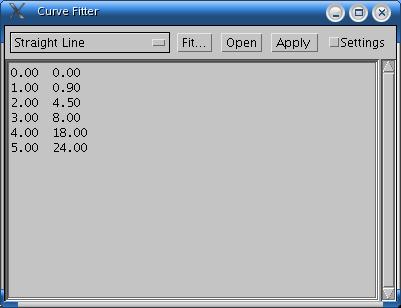
Curve Fitting...
Construct and display in a new window the interpolate curve of points with a text file who contains these XY coordinates.
Examples :
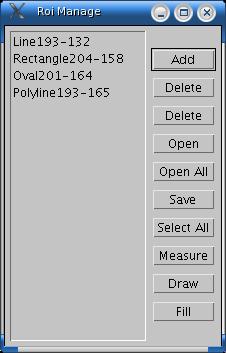
Click Add to add the current ROI to the list. Click Delete to delete the selected ROIs from the list. Click Open to open an ROI file and add it to the list. Click Open All to open all the ROI files in a folder and add them to the list. Click Save to save the selected ROIs as files. Click Measure to measure the selected ROIs. With a stack, a dialog box allows the user to choose between measuring all of the images in the stack or only the current slice. Click Draw to draw outlines of the selected ROIs using the current foreground colour and line width. Click Fill to fill the selected ROIs with the current foreground colour. Click in the Image/colours window to set the foreground colour. Use Edit/Options/Line Width to set the line width.
Scale Bar...
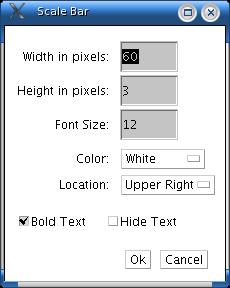
Display a scale bar on the image. This bar show the width in pixels.
Change Location to move the calibration bar. If there is a selection, the bar is initially drawn at the selection. Change Fill colour to adjust the bar's background colour. Change Label colour to adjust the text colour. Change Number of Labels to adjust the total number of values displayed. Change Decimal Places to adjust the number of decimal places present in the labels. Change Font Size to adjust the labels' font size. Change Zoom Factor to scale the entire calibration bar. If Bold Text is checked, labels are drawn bold.
Calibrate...
Use this dialog box to calibrate an image to a set of density standards, for example radioactive isotope standards or a calibrated optical density step tablet. Before using this command, use analyse/Clear Results to reset the measurement counter and use one of the selection tools and analyse/Measure to record the mean gray value of each of the standards. There is an that shows how to calibrate to an optical density step tablet.When finished making the measurements, select analyse/Calibrate to display the Calibrate dialog box. To calibrate the image, enter the known standard values in the right column, select a curve fitting method from the popup menu, enter the unit of measurement, and click OK. SalsaJ will then display the calibration function.
If the calibration function is not satisfactory, bring up the Calibrate dialog box again and select a different curve fitting method.
Rodbard is a four parameter general curve fit function proposed by David Rodbard at NIH. The form of the equation is:
y = d + (a - d) / (1 + (x/c)^b)Selecting Uncalibrated OD from the popup menu causes SalsaJ to convert gray values to uncalibrated optical density values using the functionUncalibrated OD = log10(255 / PixelValue)You do not need to measure OD standards or enter known OD values to enable this feature.
Top
|Plugins Menu | Contents |